Add a new language
This guide shows how to turn on a language's keyboard, install its dictionary for autocorrect and predictions, and confirm it's working — in about two minutes.
Reading this in another language? Your browser can translate this page automatically — look for the translate icon in the address bar, or open the ⋮ menu and choose Translate. This works in Chrome, Edge, and Safari, including on Android and iPhone.
-
1
Turn on the language switch key
Open the ekkoboard app, or tap the gear icon in the upper-left corner of the keyboard's toolbar to jump straight into settings.
From the main screen, open Preferences, scroll to Additional keys, and toggle on Language switch key. This adds a globe icon next to the space bar that lets you flip between your installed languages with a single tap. Once it's on, go back to the main Preferences screen.
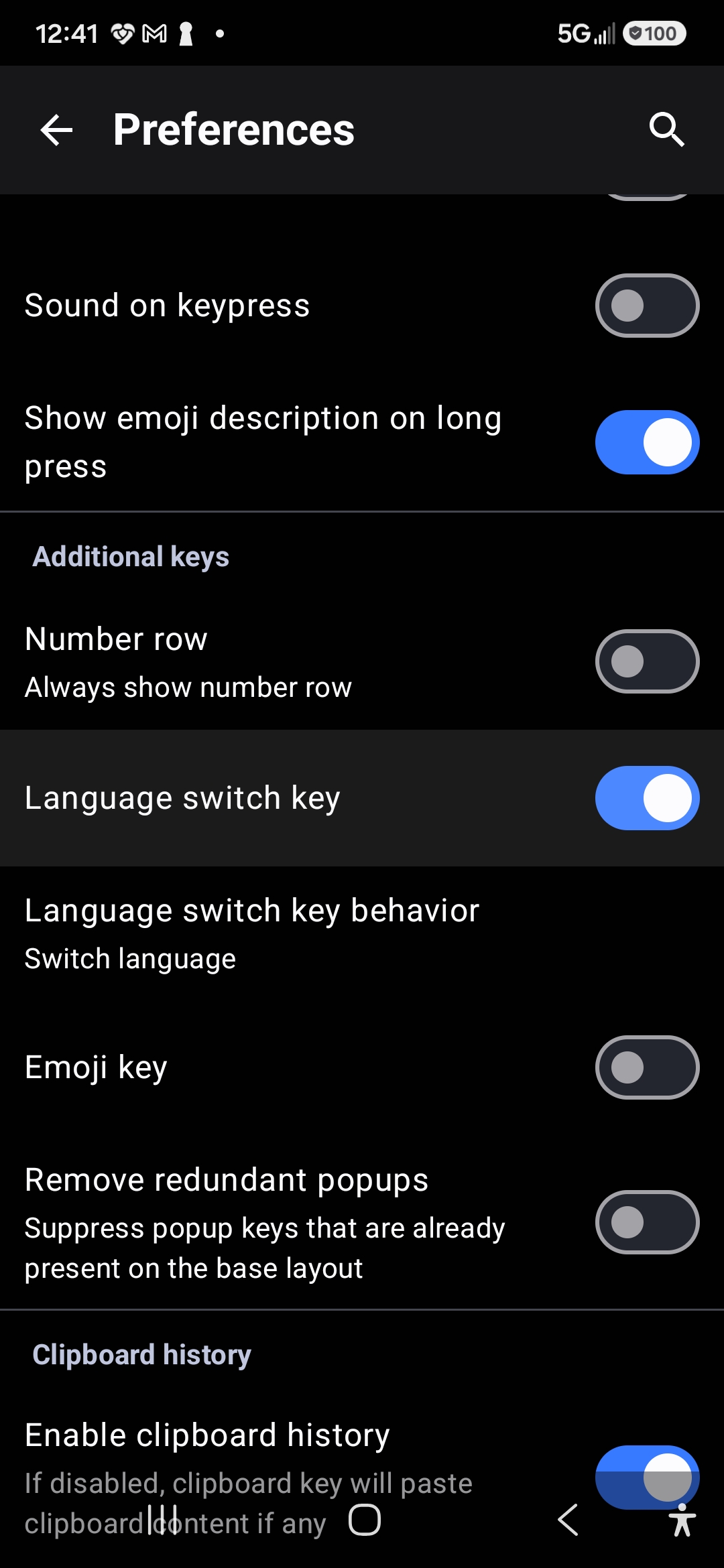
Preferences → Additional keys → Language switch key
-
2
Pick a keyboard layout (optional)
If your language needs a different physical layout, open Languages and layouts from the main Preferences screen, search for the keyboard you want, and select it.
If the default English QWERTY layout works fine for your language and you only need a dictionary for corrections and predictions, skip this step entirely.
On some devices, the built-in English keyboard can't be switched off. That's expected — it won't stop your new language from working alongside it.
-
3
Find your language's dictionary
Open the Dictionaries tab. Use the search icon in the upper-right corner to jump straight to your language, or scroll the list to find it.
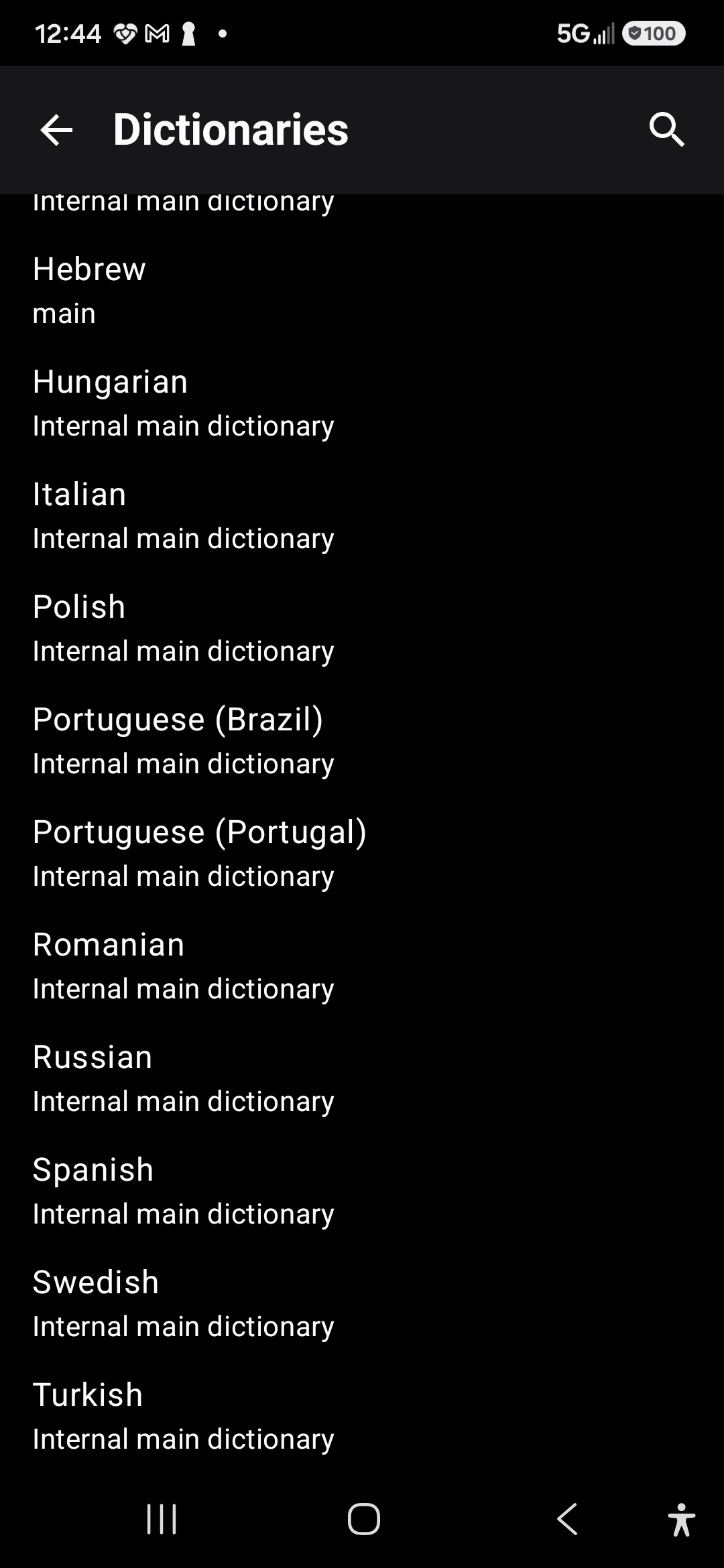
Dictionaries tab — search or scroll to find your language
-
4
Download the dictionary file
Tap your language to see the dictionaries available for it — usually a main dictionary that powers corrections and predictions, and an emoji dictionary that enables emoji search.
Tap the one you want. It opens a web page where you can download the file directly using the download icon.
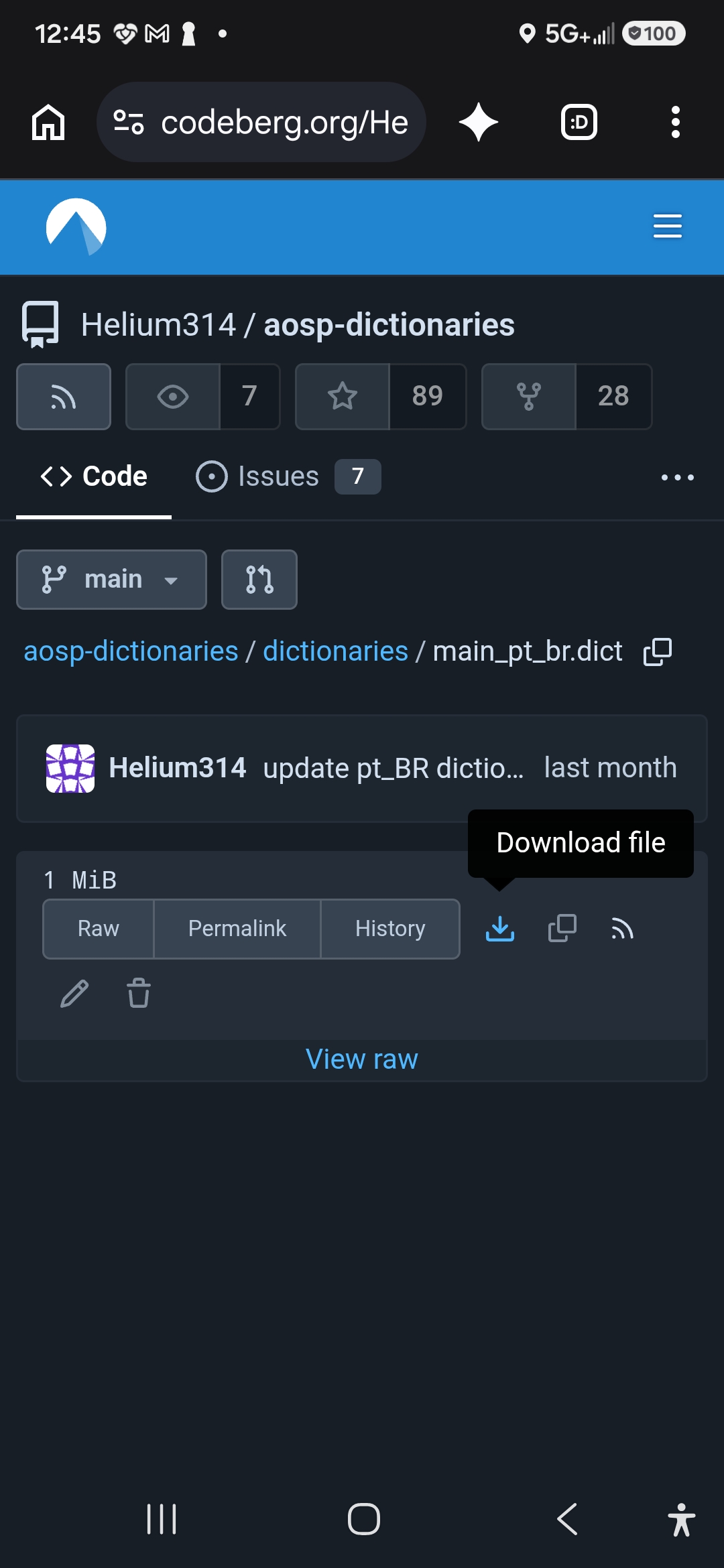
Tap the download icon to save the dictionary file
-
5
Add the dictionary to ekkoboard
Once the download finishes, return to ekkoboard and tap Add dictionary from file. Select the file you just downloaded, confirm the language shown, and tap OK.
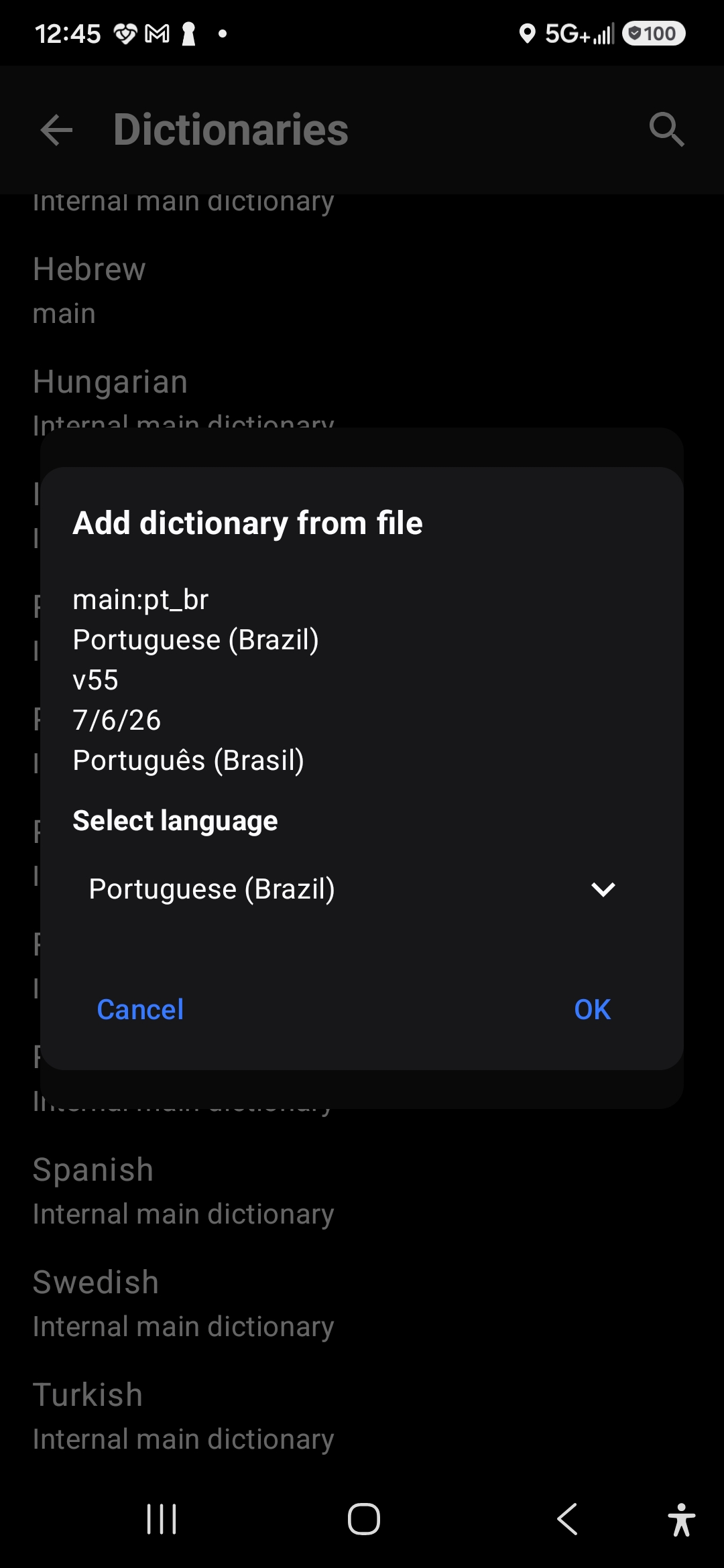
Confirm the language shown, then tap OK
Your dictionary now appears under Main dictionary in the same panel. Repeat the exact same steps for the emoji dictionary if you'd like emoji search in your new language too — the option is right there in the same list.
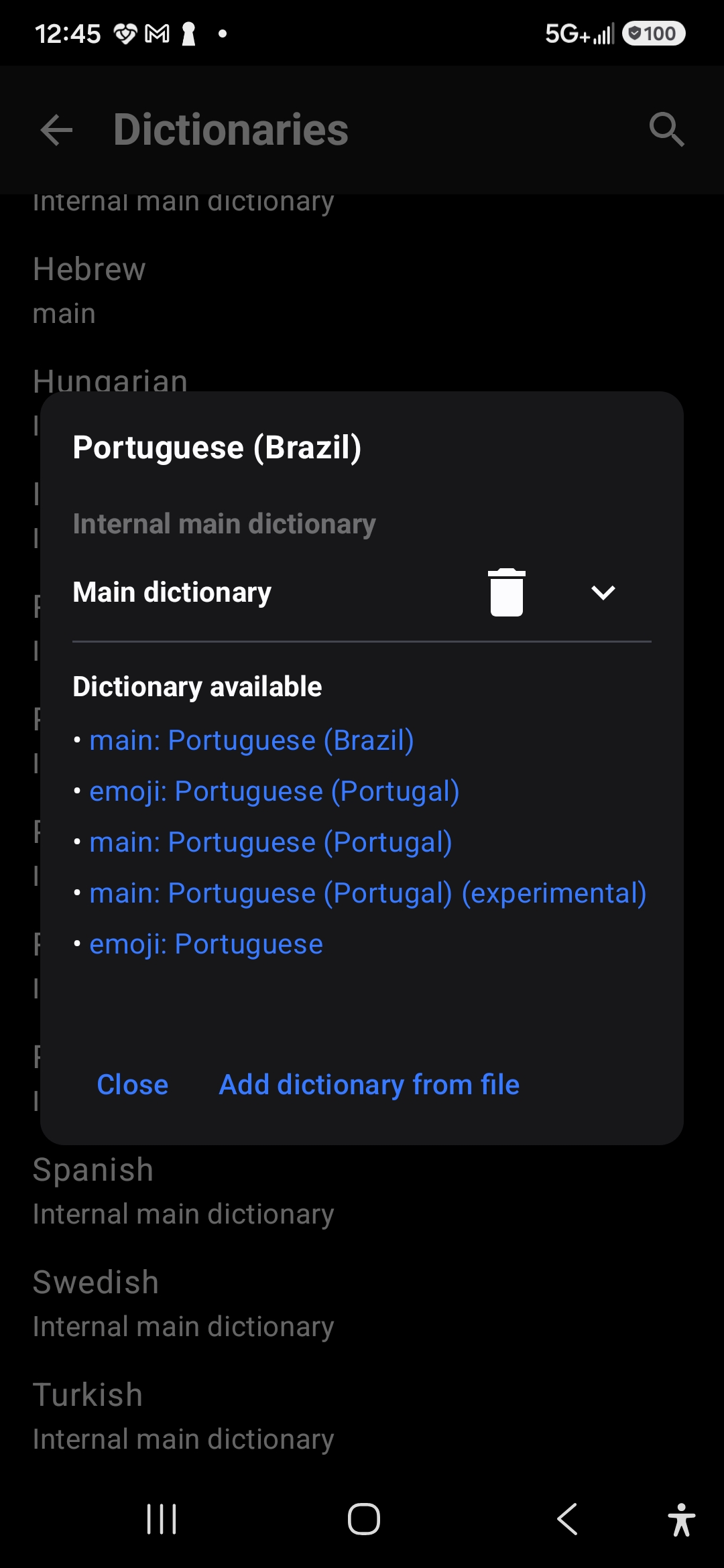
Installed dictionaries show a trash icon — add the emoji dictionary the same way
-
6
Test it
Go back to your keyboard in any app — Notes, Messages, whatever you like. If your new language isn't already active, tap the globe icon next to the space bar to switch to it.
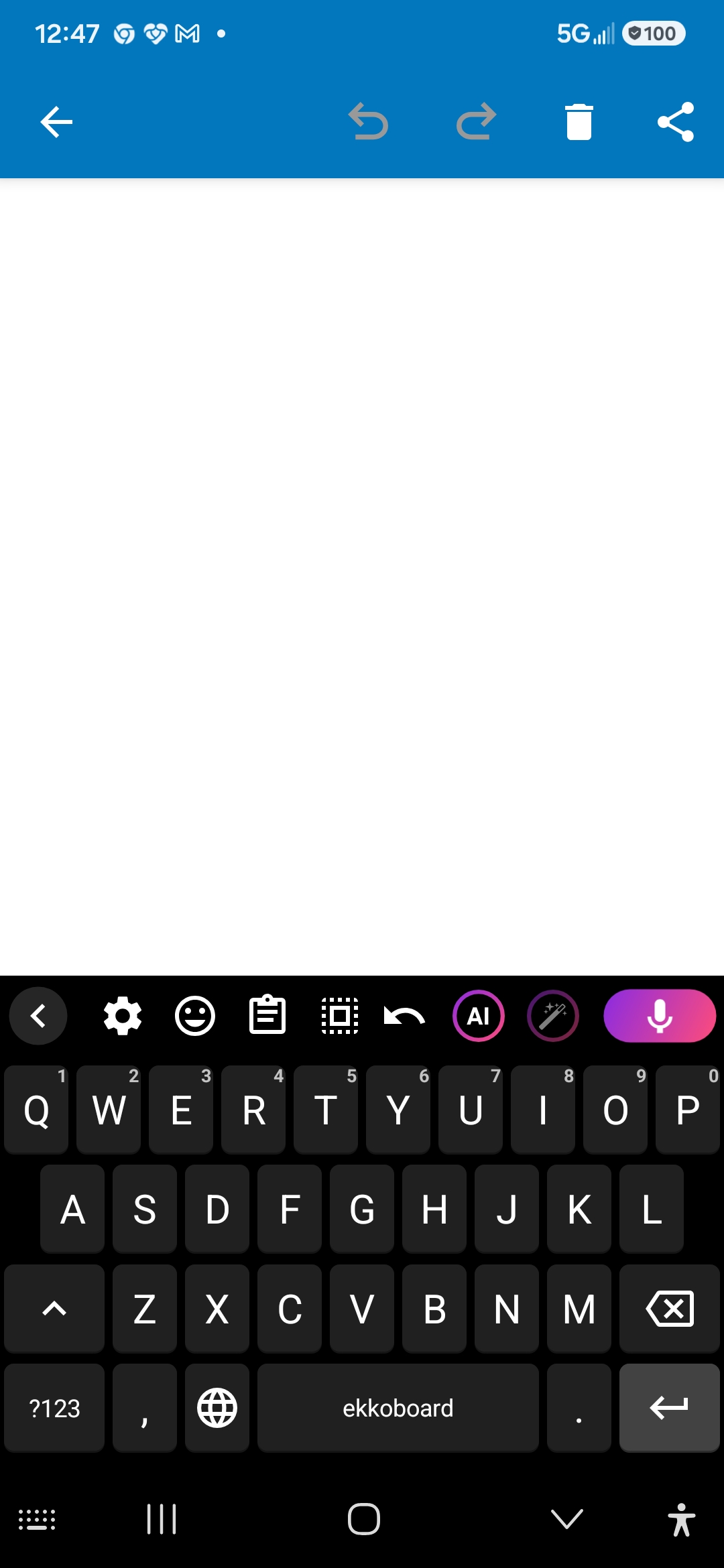
Tap the globe icon next to the space bar to switch languages
Type a test word. If ekkoboard offers a correction or suggestion, your dictionary is installed and working. Here, typing "Ola" for Brazilian Portuguese autocorrects to "Olá" — confirming the keyboard and dictionary are both set up correctly.
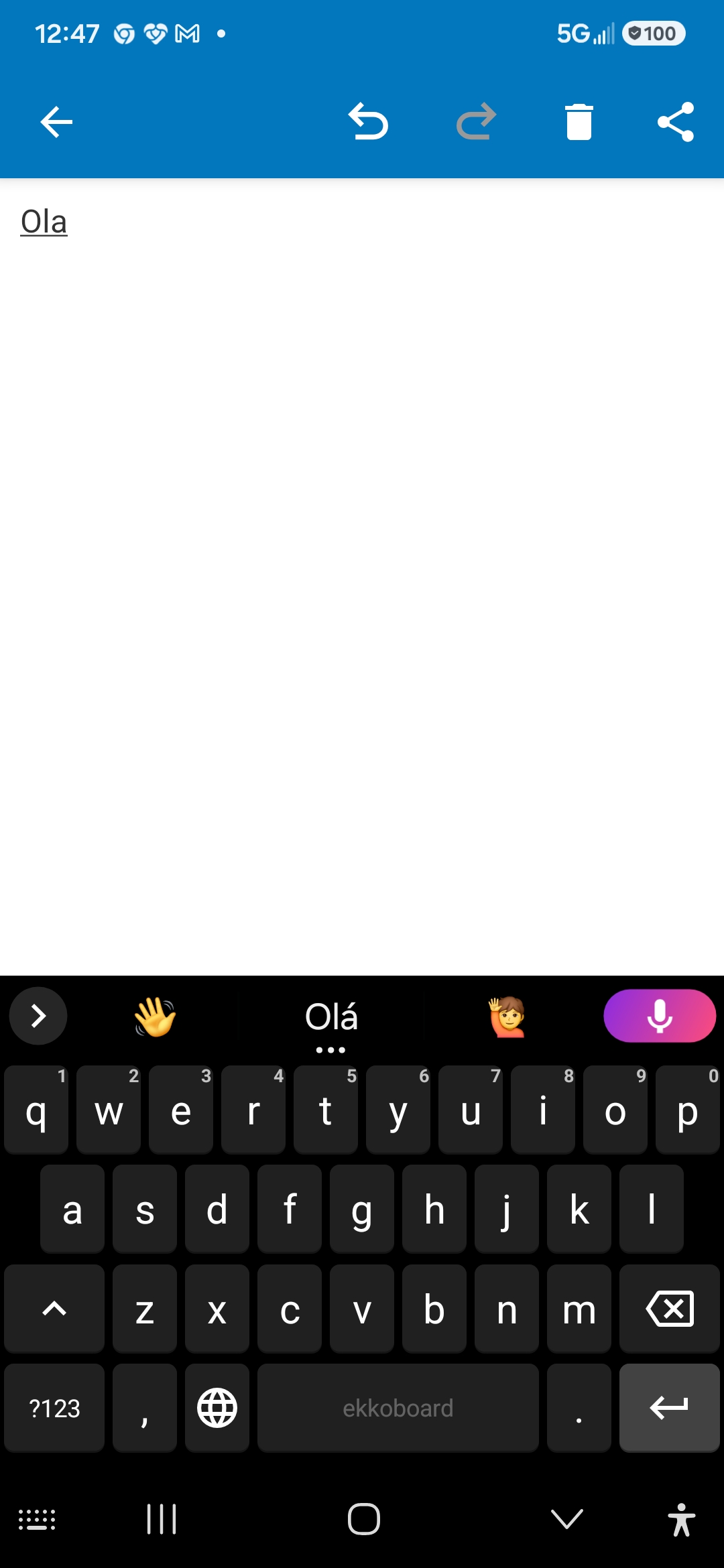
"Ola" autocorrecting to "Olá" confirms the setup worked
Still stuck?
If a language doesn't behave the way you expect, reach out through our support page and we'll help you sort it out.
Contact Support